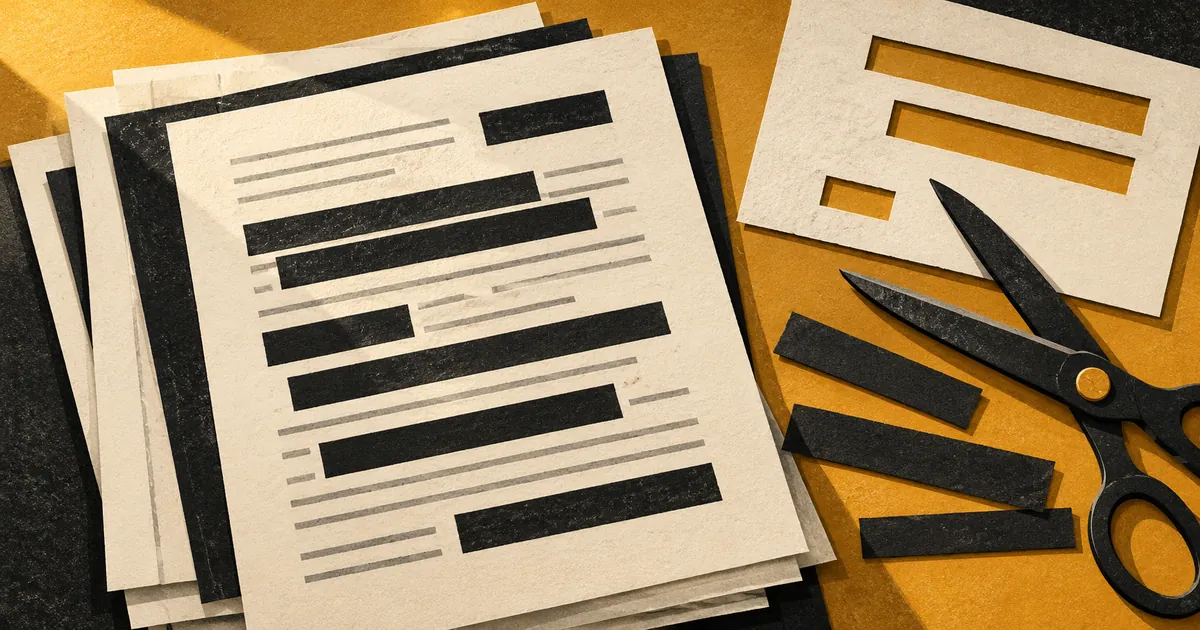
A PDF that looks anonymous can still contain information you intended to remove. The first question is whether the information has been deleted from the release file or merely covered on screen. The second is whether the file contains other information outside the visible page.
This guide describes a review workflow using published Adobe and UK Information Commissioner’s Office guidance. It is not a claim that we tested a particular document or certified a redaction product. The right release decision still depends on the material and its intended recipient.
A rectangle is not necessarily a redaction
The ICO’s redaction guidance gives a concrete failure: text covered by a black rectangle may remain recoverable by copying the PDF’s text into another application. The shape changes the appearance without necessarily removing the underlying information.
Changing text to white or placing another object over it has the same basic problem if the original content remains. A visual inspection alone cannot establish that the file contains only what the page appears to show.
Adobe distinguishes redaction from sanitization. Redaction removes selected visible text or graphics. Sanitization addresses hidden information. Plan to review both rather than assuming one operation covers every kind of disclosure.
Start with a separate release copy
Keep the original and create a clearly named working copy. Decide which information the recipient needs before marking anything: an entire unnecessary page may be easier to exclude than dozens of individual fields. Also look for repeated appearances of the same identifier across the document.
Use filenames that distinguish the private original, the working draft and the approved release. That is a practical precaution against attaching the wrong file after doing the editing correctly. A final filename should not itself contain a private client name or other identifier you intended to withhold.
For a sensitive disclosure, ask another person who understands the purpose of the release to review the result. Tell them what must be removed and what must remain usable; a second pair of eyes needs a clear task.
Apply the redactions, then save
The Acrobat Pro instructions updated August 31, 2026 describe this sequence:
Open All tools → Redact a PDF.
Choose Redact text and images, then select the content to remove.
Select Apply. Marking a region is not the final step.
Choose whether to sanitize hidden information in the confirmation dialog, continue, and save the resulting file.
These are instructions for Acrobat Pro, not a promise that every viewer has equivalent controls. If using another editor, find its documentation for permanently applying redactions and removing hidden content. Do not infer those capabilities from a drawing tool labelled “rectangle” or an annotation feature.
Review hidden information separately
Adobe’s sanitization instructions, updated October 22, identify metadata, comments and hidden layers among the information a PDF may contain. The documented workflow offers Sanitize document, followed by removing all hidden information or selectively reviewing the Hidden Information panel, then saving.
Consider what the recipient actually needs before retaining an attachment, comment or embedded item. Removing visible text from the main page does not answer whether another copy of the same information remains elsewhere in the document. Review the result for usability as well: the release copy still needs to communicate the information you intended to provide.
Check the exact file you will send
Close the editing session and reopen the saved release copy. Review every page, search for the identifiers you intended to remove and try copying text around redacted areas. Check document properties, comments, layers and attachments using appropriate PDF software. These checks can reveal mistakes; passing them is not a complete forensic proof of removal.
Our PDF Inspector can report selected readable metadata and raw action markers locally. It does not decompress streams, resolve the full object structure, decrypt content or verify redaction. An empty result cannot certify a PDF safe to publish. The Text Sanitizer works on supported text patterns, not the complete contents of a PDF.
Before sending, verify the attachment one final time against the reviewed release filename. Applied redaction, hidden-data review and checking the delivered copy are separate decisions. Treating them explicitly makes it easier to catch a disclosure error before it reaches the recipient.